The book is arranged around ordinary phone tasks, from getting home on the screen to checking photo backup status. Chapters include separate methods, a small task for tomorrow, and a plain example of the problem being solved.
01Getting Home and Knowing Where You Are
Chapter 1
- Practice tap, long-press, swipe, and scroll on a no-risk screen
- Find your way Home on an iPhone with Face ID, an iPhone with a Home button, or an Android phone
- Go back one screen without closing the task
- Open, switch between, and close apps without losing your place
- Show and hide the keyboard when it covers the button you need
- Return from an unfamiliar screen with the lock, Home, and reopen routine
First moveWhile stationary, open a plain-text screen with no important controls. Observe tap, long-press, swipe, and scroll.
02Calls, Contacts, and Voicemail
Chapter 2
- Answer or decline a call when the phone is locked or already in use
- Call a person from Contacts instead of typing the number
- Add a new contact from a recent call and correct a wrong entry
- Put your most-called people in Favorites for one-tap calling
- Use Speaker, Mute, and Keypad during a call without hanging up
- Find voicemail and play, save, or delete a message
- Find a missed call in Recents and return it from the saved contact card
First moveWrite down which calling app your phone uses: iPhone/iOS, Phone by Google, Samsung Galaxy/One UI, or another manufacturer's app. Then save its official manual page.
03Texts, Links, and Suspicious Messages
Chapter 3
- Open an unread text and return to the full conversation list
- Start a new text by choosing the right person from Contacts
- Type, correct, and send a message without losing the draft
- Dictate a text and review every word before sending it
- Save a photo received in a text to Photos or Gallery
- Mute or leave a busy group text without blocking family members
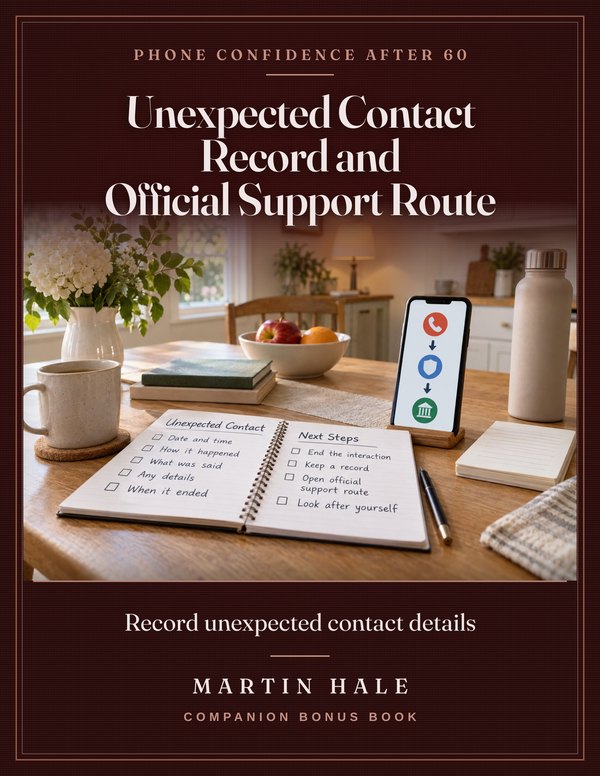
- Pause an Unexpected Contact and Open Official Support Independently
- Record an Unknown Caller or Sender Label Without Replying
First moveWrite down which app you use: Apple Messages, Google Messages, or Samsung Messages.
04Photos You Can Take, Find, and Send
Chapter 4
- Take a clear photo and switch between the front and rear cameras
- Find the photo you just took in Photos or Gallery
- Send one photo by text from the Photos or Gallery app
- Select and share several photos without sending the entire album
- Crop, rotate, and undo a photo edit without losing the original
- Make a read-only photo index without changing the library
First moveWrite the track your phone uses on paper: Apple Camera and Photos, Pixel Camera and Google Photos, Samsung Camera and Gallery, or another manufacturer’s official guide.
05Video Calls and Everyday Apps
Chapter 5
- Join a video call from a trusted text or email invitation
- Start a FaceTime or Google Meet call from a saved contact
- Allow camera and microphone access when a video app says they are blocked
- Mute, unmute, switch cameras, use the speaker, and leave a video call
- Install a requested app from the official store without starting an unwanted paid trial
- Find an installed app with iPhone Search, App Library, or the Android Apps list
First moveWrite down whether your device is an iPhone, iPad, general Android device, or Samsung Galaxy. Beside that, write the video app and account you use.
06Make the Screen Easier to Read and Use
Chapter 6
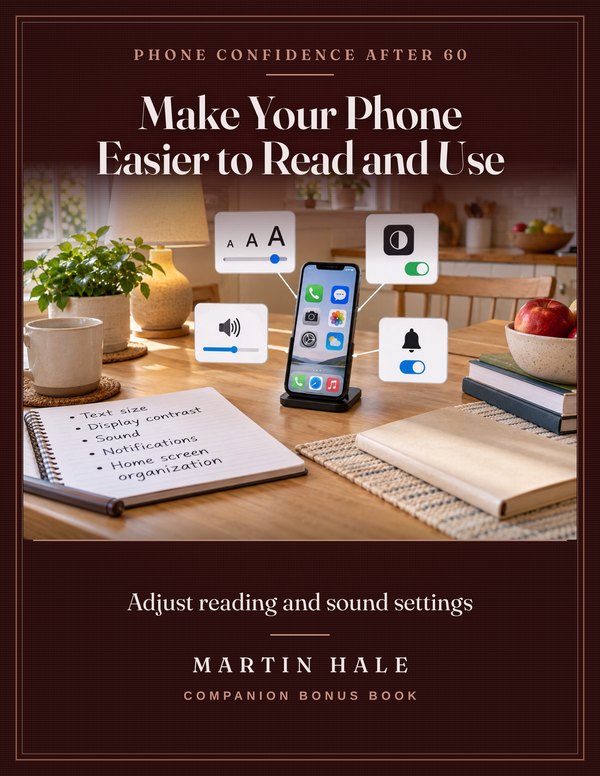
- Record your current display and sound settings before changing them
- Increase text and display size without hiding important buttons
- Use bold text, higher contrast, and color settings one at a time
- Turn on magnification or Zoom only after you know the exit action
- Adjust brightness, dark appearance, and screen timeout where you normally read
- Set call volume, media volume, ringtone, and vibration separately
- Quiet distracting notifications while keeping wanted calls and messages
- Put the apps you use most on the first Home screen
First moveStart by writing down your phone family and software version. Apple uses Settings, General, About; Google Android uses Settings, About phone or About tablet, Android version; Samsung’s One UI 7 guide uses Settings, About phone, Software information.
07Make the Phone Hard to Mess Up
Chapter 7
- Compare simplified-view options with current guide labels and a read-only task list
- Turning Samsung Easy mode on goes together with knowing how to turn it off
- Visible Android navigation buttons put fixed Back, Home, and Overview targets at the screen edge
- In Control Center or Quick Settings, remove the controls you do not use
- Review One App's Notification Setting
- To prevent controls from moving when the phone rotates, keep the screen in portrait orientation
First moveBefore you change anything, photograph the current Home screen and write down the route for undoing the setting.
08Finding Settings When Menus Look Different
Chapter 8
- Write Down Your Exact Phone Identity
- Search Settings Using Alternate Terms
- Trace an App Permission Without Guessing
- Translate a Generic Android Path
- Use Official Support After a Menu Change
First moveStart a Phone identity note. Copy the exact model and software version from the phone or its official identification page.
09Choosing the Easiest Phone for You
Chapter 9
- Build a must-have card for vision, hearing, hand control, apps, family support, and budget
- Decide whether to simplify your current phone or replace it
- Compare iPhone and Android with the same everyday tasks
- Read Samsung A, S, Z, and FE model names without choosing by the letters
- Compare a standard smartphone, a Jitterbug smartphone, and a flip phone by missing functions
- Compare Two Phones with a Familiar-Task List
- Use a New Phone for Five Familiar Practice Tasks
First moveMake your must-have card. Include vision, hearing, hand control, required apps, family support, and your spending ceiling.
10Everyday Calendar, Reminders, Alarms, Notes, and Contacts
Chapter 10
- Create One Calendar Event and Check Every Field
- Put a Reminder on the Right List
- Label an Ordinary Alarm So You Know Why It Rings
- Make a Note with a Short Checklist
- Clean Up One Contact Card Without Losing the Original Details
- Build a Five-Minute Weekly Organizer Review
First moveCreate one calendar event and reopen it from the month view.
11Photos, Backup Status, and Getting Familiar with a New Phone
Chapter 11
- Draw a Familiar Phone Layout Map
- Organize Selected Photos into a Named Album
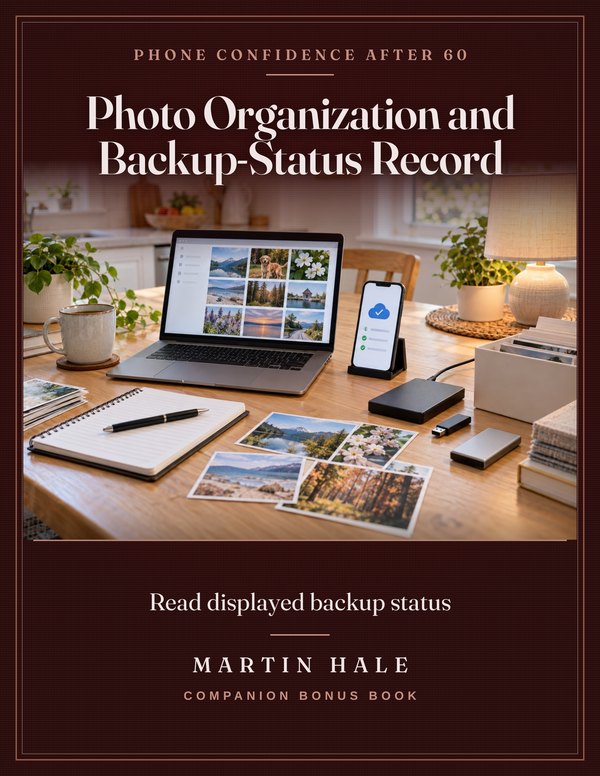
- Read a Photo App's Displayed Backup Status
- Make a Nonsecret List of Frequently Used Apps
- Check Which Familiar Apps and Photos Are Visible on a New Phone
First movePut your current phone, its charging equipment, paper, and a pen together. Start the before-switch inventory with one important item under each heading.